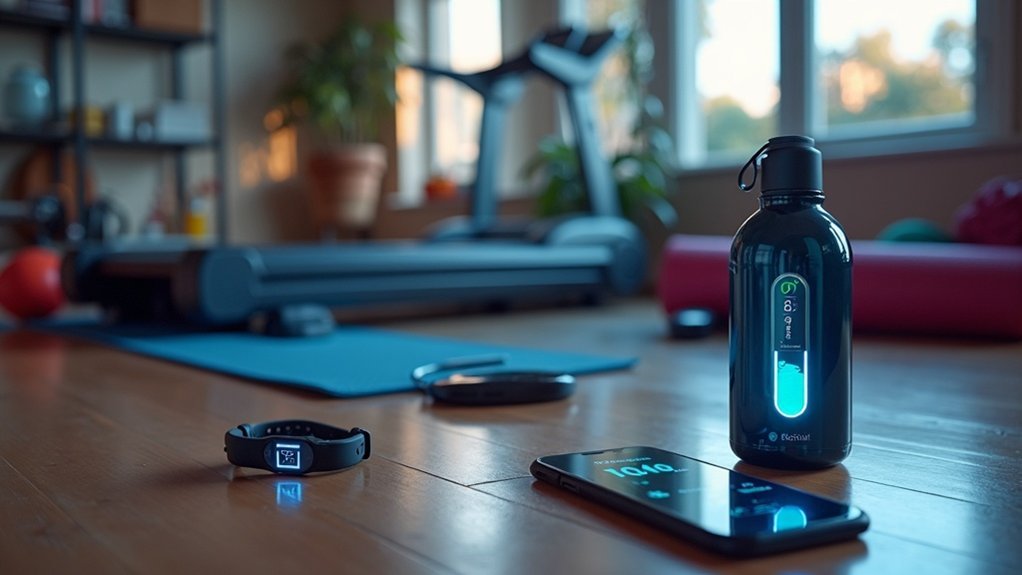
To connect Bluetooth sensors in your home gym, start by ensuring your device is running Android 9.0+ or iOS 14+. Turn on Bluetooth and keep your sensors within three meters for optimal connection. Activate the sensors and moisten any required pads to enhance detection. Use the dedicated app to locate and pair your devices, carefully following the prompts to confirm the connection. Once successfully paired, your sensors should connect automatically during workouts, allowing you to focus on your fitness goals. If you run into any issues, there are straightforward troubleshooting steps you can take to ensure a seamless experience as you work towards staying healthy and fit at home.
Key Takeaways
- Ensure your device is running Android OS 9.0+ or iOS 14+ and that Bluetooth is enabled in the settings for optimal performance.
- Activate your sensors and keep them within three meters of your device for effective pairing, ensuring a smooth connection during your workout.
- Moisten the sensor pads for improved detection and switch the sensors to pairing mode to establish a reliable link.
- Use the dedicated app to locate and connect to your sensors by navigating through Menu > Apps & Devices, enhancing your workout experience.
- Enable Auto-connect in the app for a seamless transition to your future workout sessions, making it easier to stay committed to your fitness goals from the comfort of home.
Preparing for Sensor Connection
Before jumping into the exciting realm of Bluetooth sensors for your home gym, it’s vital to set the groundwork for a seamless connection experience.
First, ensure your device is running Android OS 9.0 or higher or iOS 14 or later. Next, confirm that Bluetooth is enabled in your device’s General Settings.
To secure a strong and reliable connection with your Bluetooth heart rate monitor, keep it within three meters (10 feet) of your device. Moistening the sensor pads can improve detection accuracy.
Finally, close all other apps and disable any other active Bluetooth devices to minimize interference.
With these steps, you’re all set to connect your Bluetooth sensors effectively and enhance your home workout experience!
Activating and Finding Your Sensors
To successfully connect your Bluetooth sensors for your home gym equipment, you’ll want to activate them first, ensuring they’re powered on and within three meters of your device.
For example, wearing your heart rate monitor or using cadence sensors can help them pair effectively during your workouts.
Before you start, make sure any other wireless sensors are at least ten meters away to prevent interference.
Next, access your device’s Bluetooth settings to find your specific Bluetooth sensor from the list of available devices.
Lastly, confirm that Bluetooth is enabled and your device meets the required operating system versions for a seamless connection, allowing you to focus on achieving your fitness goals from the comfort of your home.
Pairing Your Bluetooth Sensors
Once you’ve activated your Bluetooth sensors, pairing them with your device is the next essential step to elevate your home gym experience. Here’s how to do it:
- Make sure your device is equipped with Bluetooth capabilities (Android 9.0+ or iOS 14+).
- Turn on Bluetooth in your device settings, but remember to use the app for the pairing process.
- Moisten the pads of your heart rate monitor, put on the strap, and switch it to pairing mode.
- Launch the app, go to Menu > Apps & Devices, select the heart rate option, and confirm the connection.
Once paired, enable Auto-connect for future workouts to streamline your sessions.
Also, check the sensor icon in the app to ensure that everything is connected properly, so you can focus on achieving your fitness goals at home.
Post-Pairing Functionality
After successfully pairing your Bluetooth sensors, you’ll experience a remarkable boost in your home workout routine.
Your heart rate monitor will automatically connect each time it’s activated and within range, making your training sessions smoother and more efficient. As long as you keep the monitor worn and powered on, you’ll have immediate access to your performance metrics in your smart trainer app.
This seamless integration ensures you can track your data continuously without any interruptions, helping you stay on top of your fitness goals.
However, if you reset or unpair the device, you’ll need to go through the pairing process again.
Embrace the convenience and efficiency that comes with effective post-pairing functionality for optimal workouts at home!
Troubleshooting Connection Issues
When you encounter issues with your Bluetooth sensors not connecting during your home workouts, it’s essential to troubleshoot effectively to keep your fitness routine on track.
Here are some steps to consider:
- Turn Bluetooth OFF and back ON to refresh your connections.
- Restart your phone and the sensor to clear any temporary glitches that might be causing the issue.
- Check the battery strength of your heart rate monitor or other sensors; weak batteries can disrupt connections and affect your performance.
- For iOS users, ensure that the app has location and background access enabled for optimal functionality.
Additional Support and Resources
When you’re facing connection issues with your home gym equipment, it’s essential to know where to find help.
Updating your app and firmware can often resolve persistent problems, so make sure you check for the latest versions to ensure optimal performance.
Additionally, consult the troubleshooting sections in your device manuals for tailored solutions that cater to your specific equipment and workout routines.
Staying connected is key to maintaining your fitness journey at home!
Troubleshooting Connection Issues
If you encounter difficulties connecting your Bluetooth sensors while working out at home, don’t worry—there are several straightforward steps you can take to resolve the issue and keep your fitness journey on track.
- Turn Bluetooth OFF and then back ON to reset the connection.
- Restart both your smartphone and the sensor to refresh connectivity.
- Check that the batteries in your heart rate monitor are adequately charged to ensure accurate readings during your workouts.
- For iOS devices, confirm the app has permission to access location and background functionality, so you can track your progress seamlessly.
Stay focused on your fitness goals and don’t let technical issues hold you back!
Updating App and Firmware
Keeping your home gym equipment and associated apps up-to-date is essential for maximizing performance and ensuring a smooth exercise experience.
Regularly check the Google Play Store or Apple App Store for the latest updates to enhance compatibility with your fitness devices. Within the app settings, look for firmware updates for your connected fitness sensors, as these can significantly improve functionality and connection stability.
Many Bluetooth fitness sensors require the latest firmware to remain compatible with new app versions and operating systems, ensuring you get the most accurate data for your workouts.
If you encounter any issues, consult the app’s support resources or the manufacturer’s website for detailed instructions on updates and answers to commonly asked questions.
Staying updated will help you achieve your fitness goals more effectively from the comfort of your home.